How to Add LUTs to the Blackmagic Camera App
One of the best reasons to shoot with the free Blackmagic Camera app on iPhone or Android is native .cube LUT support. You can monitor a cinema grade live while framing flat Apple Log footage, or bake a finished look straight into your clip so it's ready to post with zero editing.
Need free 33-point .cube files that load cleanly on mobile? Start with my free Blackmagic Camera app LUTs (for Rec.709 shooting) or my free Apple Log & Log 2 LUTs (for iPhone 15 Pro, 16 Pro and 17 Pro Log recording).
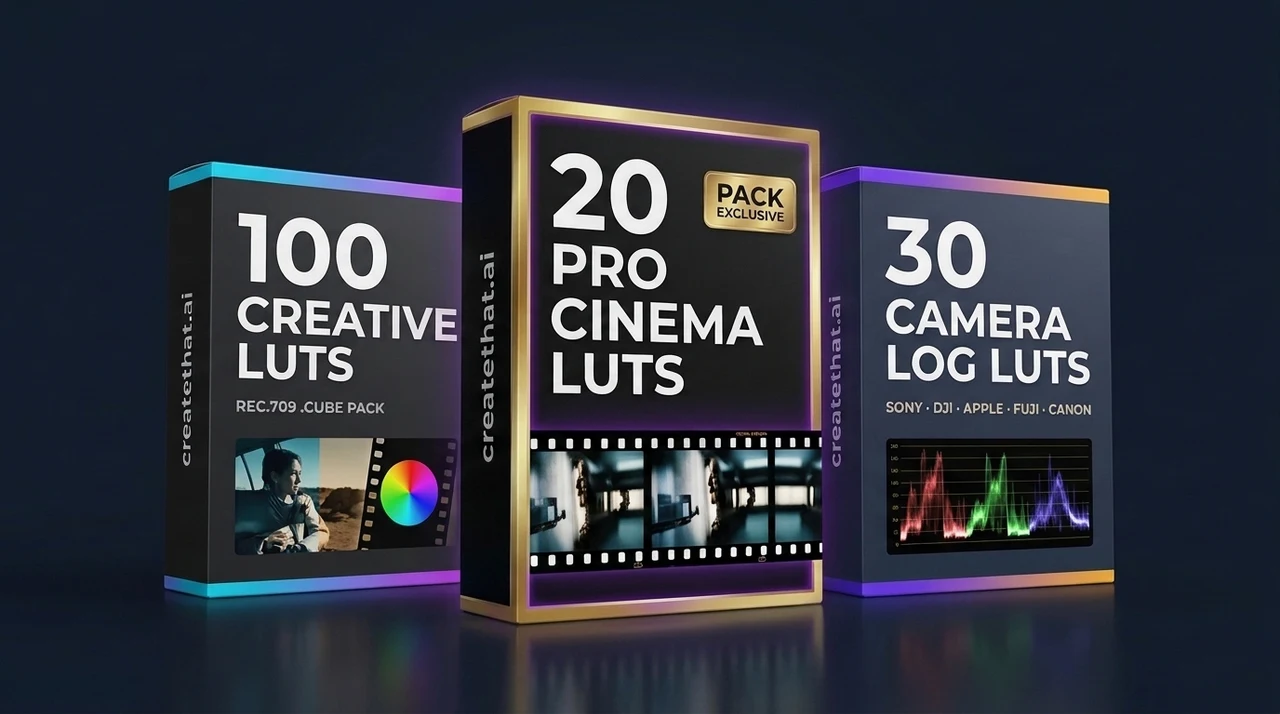
Get 150 .cube LUTs ready for Blackmagic Camera
100 Rec.709 creative looks + 30 Camera Log LUTs (including Apple Log) + 20 Pro Cinema LUTs in one ZIP you can unzip straight inside iPhone or Android Files.
$5$19one-time
Quick answer
How to import and apply a LUT in Blackmagic Camera (iPhone & Android):
- Download your
.cubefile to your phone's Files / Downloads folder (unzip first if it's a.zip). - Open Blackmagic Camera › Settings (gear icon) › LUTs.
- Tap LUT Selection › Import LUT and select the
.cubefile. - Switch Display LUT on to preview live on screen. Only toggle Record LUT to Clip on if you want the look permanently baked into the video.
Step-by-Step: Import LUTs on iPhone
Blackmagic Camera app menu path
Importing a 33-point .cube LUT on iPhone or Android
Tip: Keep a dedicated 'LUTs' folder inside iCloud Drive or On My iPhone so you can swap looks in seconds on set.
- Save the .cube file to Files. Tap any download link in Safari — iOS saves it automatically to Files › Downloads. If you downloaded a
.zippack, open the Files app and tap the.ziponce to extract the.cubefiles. - Open the Blackmagic Camera app and tap the Settings gear icon in the bottom-right toolbar.
- Scroll down and tap LUTs.
- Tap LUT Selection, then tap Import LUT at the bottom of the screen.
- Browse to Downloads (or iCloud Drive) and tap your
.cubefile. Select it from the list so a checkmark appears next to its name. - Go back one screen to the LUTs menu and toggle Display LUT to ON. Tap back to the camera viewfinder — you'll see the graded look live on screen.
How to Add LUTs on Android (Samsung, Pixel & More)
The Android build of Blackmagic Camera uses the exact same menu layout as iOS:
- Download your
.cubefile in Chrome (unzip packs in your Files app so the raw.cubesits in Downloads). - In Blackmagic Camera, tap Settings › LUTs › LUT Selection › Import LUT.
- Pick the
.cubefile, select it, and flip Display LUT on.
Display LUT vs. Record LUT to Clip (Pick the Right One)
Inside Settings › LUTs you'll see two toggles that sound similar but produce very different files:
| Toggle | What Gets Saved to Camera Roll | Best For |
|---|---|---|
| Display LUT (ON) + Record LUT (OFF) | Clean, ungraded original footage (e.g., flat Apple Log). The LUT only previews on your screen. | Editing later in DaVinci Resolve, Premiere Pro, Final Cut or CapCut with full flexibility to tweak exposure and intensity. |
| Display LUT (ON) + Record LUT to Clip (ON) | The LUT is permanently baked into the recorded video file — you cannot remove it later. | Fast social media clips, TikToks, Reels and client previews you want to post straight off your phone with zero post-production. |
Match Your Color Space: Apple Log vs. Rec.709
Nine out of ten "this LUT looks terrible on my iPhone" moments happen because the camera's Color Space setting doesn't match the LUT. Check Settings › Record › Color Space before you shoot:
Match Blackmagic Camera's Color Space to the right LUT type
Option A · Apple Log / Log 2
Use an Apple Log → Rec.709 LUT
Best for iPhone 15–17 Pro. Captures max dynamic range with zero phone over-sharpening. Pair with Apple Log LUTs.
Option B · Rec.709
Use a Creative Rec.709 LUT
Works on every iPhone & Android model. Drop any standard creative .cube LUT on directly for live monitoring or baking.
Never Mix Them
Why Mismatches Break
A Rec.709 LUT on flat Apple Log looks grey and washed out. An Apple Log LUT on Rec.709 crushes blacks and clips skin.
Two Free LUTs Built for Blackmagic Camera
Try both options below — one calibrated specifically for Apple Log (compare flat Log vs. graded), and one standard Rec.709 look if you shoot normal color space.
1. Apple Log Cinema 2383 (For Apple Log / Log 2)


Preview on:
Converts flat Apple Log (Rec.2020) directly into a rich Kodak 2383 theatrical print look in one 33-point file — ideal as a live Display LUT on iPhone 15 Pro, 16 Pro and 17 Pro.
2. Golden Film 400 (For Rec.709 Shooting)


Preview on:
Softens harsh smartphone highlights and warms skin tones immediately when shooting standard Rec.709 in Blackmagic Camera on iPhone or Android.
Free Blackmagic Camera LUTs
Browse 18 tested 33-point .cube LUTs for Blackmagic Camera, or switch to our Apple Log collection.
Why Won't My LUT Import? (4 Quick Fixes)
- File is greyed out on iPhone: Make sure it isn't still zipped, and check in the Files app (long-press › Get Info) that Safari didn't add
.txtto the end. Rename it back to.cube. - 65-point LUT rejected or slow: Blackmagic Camera works best with standard 33-point
.cubefiles (every LUT on createthat.ai is exported at 33 points for mobile compatibility). - LUT looks fine on screen but didn't save to the video: You had Display LUT on without Record LUT to Clip. Either toggle Record LUT on next time, or apply the same
.cubein post in DaVinci Resolve, Premiere Pro or CapCut. - Want to preview LUTs on an iPhone clip first? Drop a screenshot or MOV into my browser LUT Previewer to see all 100 looks before importing only your favorites.
Frequently asked questions
What LUT format does the Blackmagic Camera app support?
The Blackmagic Camera app on iPhone and Android supports standard 33-point .cube LUT files. Always unzip downloaded packs first so you are importing the actual .cube file rather than a .zip archive.
What is the difference between Display LUT and Record LUT to Clip?
Display LUT only previews the grade live on your phone screen while recording clean, untouched footage underneath (best if you plan to edit later). Record LUT to Clip permanently bakes the look into the saved video file so it is ready to post straight from your camera roll.
Why does my LUT look way too dark or saturated in Blackmagic Camera?
You mismatched your color space. If you shoot in Apple Log, you need an Apple Log → Rec.709 LUT. If you shoot standard Rec.709, use a creative Rec.709 LUT. Putting a Rec.709 creative LUT straight onto flat Apple Log (or vice versa) pushes contrast and saturation out of whack.
Why is my .cube file greyed out when importing on iPhone?
Either the file is still inside a .zip folder (tap the .zip once in the Files app to extract it first), or Safari appended .txt to the end of the filename. Rename it in Files so it ends cleanly in .cube, then re-import.
Does the Blackmagic Camera app support LUTs on Android as well as iPhone?
Yes. On supported Android phones (Pixel, Samsung Galaxy S-series, Xiaomi and others), the exact same workflow applies: save the unzipped .cube file to your Downloads folder, open Settings › LUTs › Import LUT, and toggle Display LUT on.
Can I use these LUTs on iPhone 16 Pro and iPhone 17 Pro Apple Log?
Yes. Pair Apple Log (or Apple Log 2 on iPhone 17 Pro) with our free Apple Log → Rec.709 33-point .cube LUTs to monitor a natural or filmic grade live while capturing full 10-bit Log dynamic range.