How to Add Keyframes in CapCut PC and Mobile (2026)
Learning how to work with keyframes is a logical progression for anyone looking to level up their video editing skills in 2026.
Today I'll show you how to add keyframes in CapCut, considering both the PC and mobile versions. Plus, we'll create a simple animation using keyframes so you can really lock in the skill of keyframe animations in CapCut.
Quick answer
Select your clip, move the playhead, and click the diamond (keyframe) icon to save each point of your animation.
On PC and Mac:
- Click your clip on the timeline and move the playhead to where the animation should start
- Click the diamond icon next to the setting you want to animate in the right-hand panel (Video, then Basic)
- Move the playhead, change the value, and click the diamond again
Shortcut: CapCut lists Alt + K to show the keyframe panel and Shift + click to add a keyframe in it.
On mobile:
- Select your clip and move the cursor to your first point
- Tap the diamond icon above the timeline, next to undo
- Move the cursor, change the value, and tap the diamond again
In This Article
- What Are Keyframe Animations?
- What You Can Keyframe in CapCut
- How to Add Keyframes in CapCut for PC and Mac
- How to Move, Edit and Delete Keyframes on PC
- How to Add Keyframes in the CapCut Mobile App
- Smooth Keyframe Animations with Speed Curve Graphs
- Can't Find the Keyframe Button?
- Frequently Asked Questions
What Are Keyframe Animations?
Keyframe animations are points set at precise times in a video clip to define the start and ending points of effects, transitions, scale adjustments, rotation, and any other effect parameters you want to add.
Keyframes are a powerful yet simple video editing tool for creating smooth animations and are an essential skill to add to your video editor toolkit.
Understanding Keyframe Animation for New Video Editors
I remember being brand new to video editing and hearing the term "keyframes" thrown around quite often. I recall thinking to myself that they sounded super advanced, but the good news is, they are not!
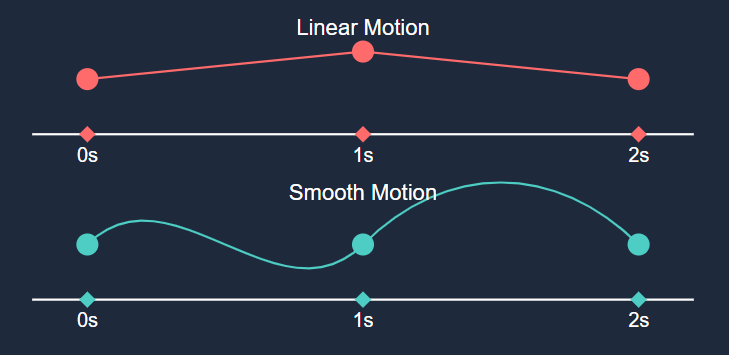
Think of keyframes like taking snapshots of an object at different moments. The diagram below shows a basic keyframe animation to increase the scale, then return it over 2 seconds:
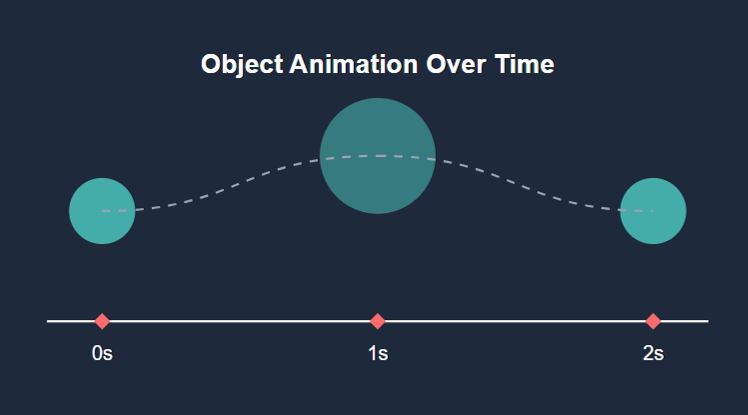
- At 0s: Object starts small - scale = 100%
- At 1s: Object grows bigger - scale increase to 115%
- At 2s: Object returns to original size - scale returns to original 100%
CapCut automatically creates smooth transitions between these "snapshots", shown by the small diamonds. And like connecting the dots, you just set these key moments and your parameter values, and the software handles everything in between!
What You Can Keyframe in CapCut
Any setting with a diamond next to it can be keyframed. These are the ones you'll use most:
- Scale: slow zooms and punch-ins. See how to zoom in on CapCut
- Position: pans, and sliding a clip, photo or sticker across the screen
- Rotation: spins and tilts
- Opacity (under Blend): fade a clip or overlay in and out. See how to fade out in CapCut
- Color adjustments: brightness, contrast, saturation and the rest, for a grade that shifts over time. See color grading in CapCut
- Filters, effects and masks: change their strength, size or position as the clip plays
- Text and stickers: size, position and rotation, so titles can grow or slide in. See how to add text in CapCut
- Audio volume: fade music down under a voiceover, then back up
The preset In, Out and Combo animations in the Animation tab don't have keyframes. If you want full control over a movement, build it yourself with Scale, Position and Rotation keyframes instead.
How to Add Keyframes in CapCut for PC and Mac
Here's how to add keyframes in CapCut for PC users. CapCut for Mac has the same layout, so these steps work the same on a Mac:
- Click your clip or element on the timeline, the settings panel will open in the top right hand side
- Move the playhead to desired starting point of your keyframe animation
- Click the diamond icon next to the parameter you want to animate to set the initial keyframe
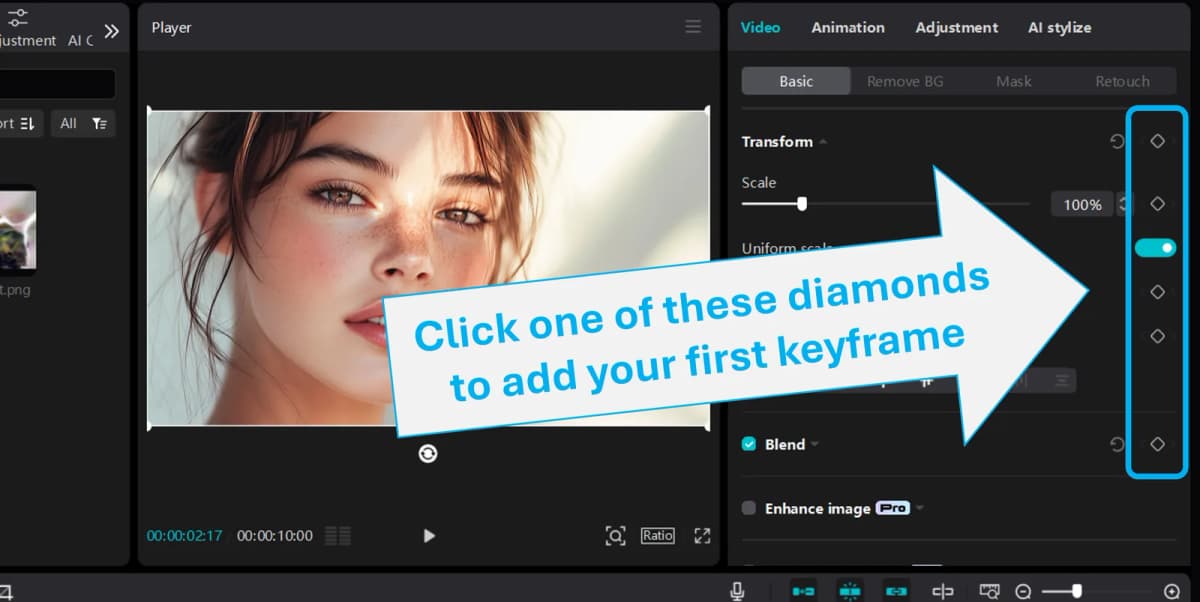
- Move playhead to the TIME where you want animation's midpoint to be, and adjust your property from step 3 (increase, decrease, move around, etc.)
- Click diamond icon again to set the midpoint keyframe
- Preview animation and adjust timing and properties as needed!
You just added a simple 2-step keyframe animation!
Tip: the diamond on a section heading, like Transform, keyframes every setting in that section at once. Use it when you want scale, position and rotation to change together.
The CapCut PC Keyframe Shortcut
CapCut's own guide lists Alt + K to show the keyframe panel and Shift + click to add a keyframe inside it. Shortcuts can change between versions, so if it doesn't work for you, check the keyboard shortcuts list in CapCut's menu, or just click the diamond.
How to Move, Edit and Delete Keyframes on PC
Once your keyframes are in, they show up as small diamonds on the clip in the timeline. Here's how to change them:
- Jump between keyframes: click the small arrows on either side of a setting's diamond to move the playhead to the previous or next keyframe
- Edit a keyframe: jump the playhead onto it (its diamond fills in), then change the value. The keyframe updates instead of a new one being added
- Add one by changing a value: once a setting has a keyframe, changing it anywhere else on the clip adds a new keyframe for you
- Move a keyframe: drag its diamond left or right on the clip to change when it happens
- Delete a keyframe: put the playhead on it and click the filled diamond again
How to Add Keyframes in the CapCut Mobile App
Here's how to add keyframes in CapCut for mobile app users:
- Select your clip or element on the timeline
- Move timeline cursor to where you want to place your first keyframe
- Tap the diamond icon above the timeline, shown below
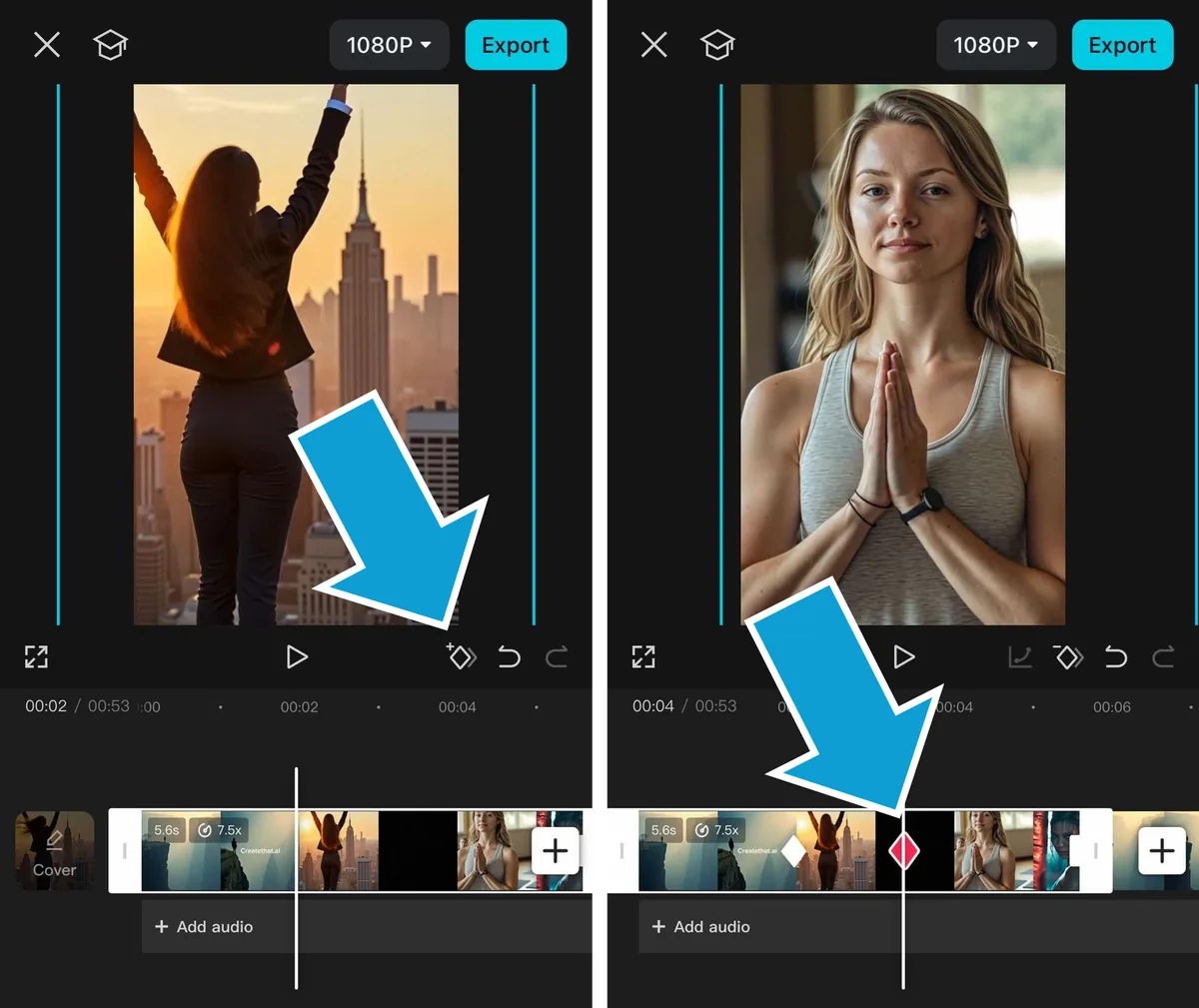
- Move cursor to next point, adjust your property values
- Tap diamond icon again to set another keyframe
- Tap the "graph" icon beside the diamond shaped icon to add non-linear smooth animations between your keyframes
- Preview and fine-tune timing/values as needed
Quick Tips for using Mobile Keyframes:
- Use two fingers to pinch zoom timeline for precise keyframe placement
- Tap between keyframes to add midpoint adjustments
- Hold and drag keyframe diamonds to adjust timing
- Double tap diamonds to modify exact values
- To remove a keyframe, move your play head over it, and tap the keyframe diamond again
That's it! You've now added keyframes on mobile. The principles are the same as desktop - you're just setting those key moments and letting CapCut handle the smooth transitions between them.
Smooth Keyframe Animations with Speed Curve Graphs
When you add keyframes in CapCut, the animations are linear by default. This means they can be jarring for the viewer. Take the image below, you can see how the standard linear motion graph has instant changes, compared to the nice non-linear curves in the smooth motion example.
To add these dynamic animations in CapCut PC:
- Add your keyframes as normal using the keyframe icon
- Once keyframes are positioned, right click the clip on the timeline and select "Show keyframe animation"
- Then click the "Graphs" icon shown below
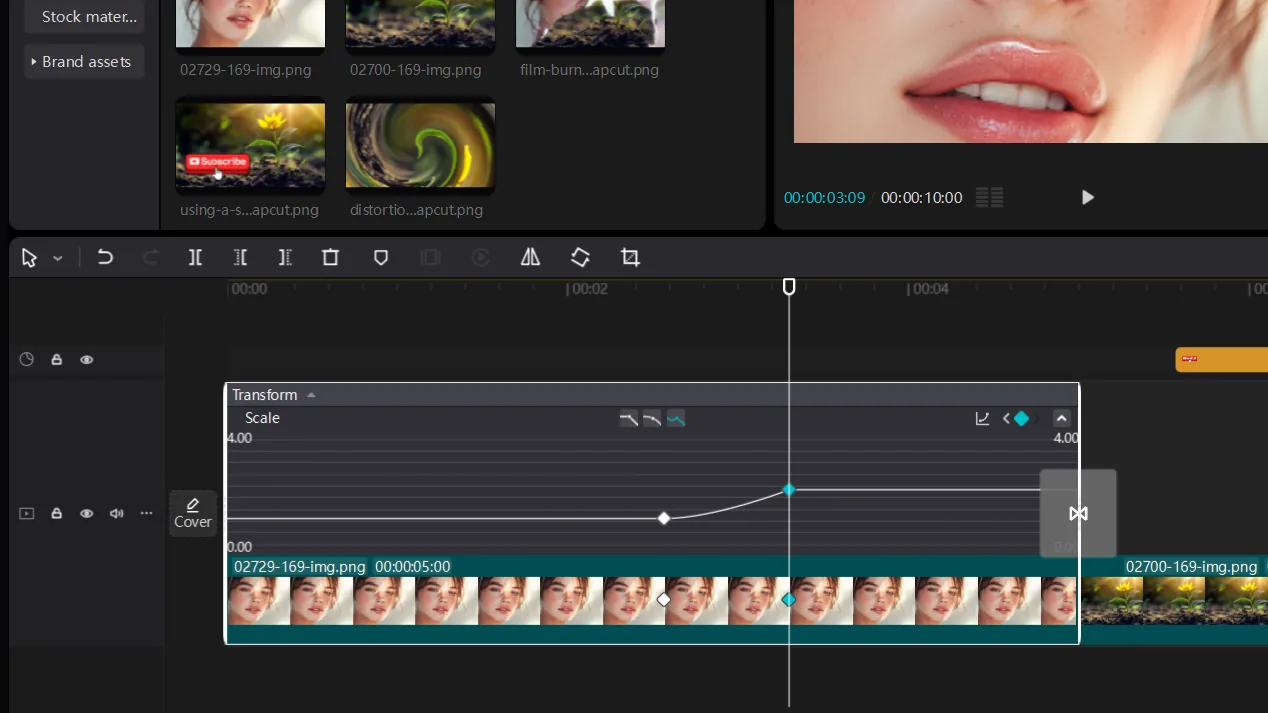
- Choose the curve you want to use from the list and apply keyframe animation
- Playback your video to check it works well!
To add dynamic animations in CapCut mobile:
- Finish your keyframe editing on your desired clip
- Move the playhead over a keyframe
- Tap the "Graphs" icon shown below
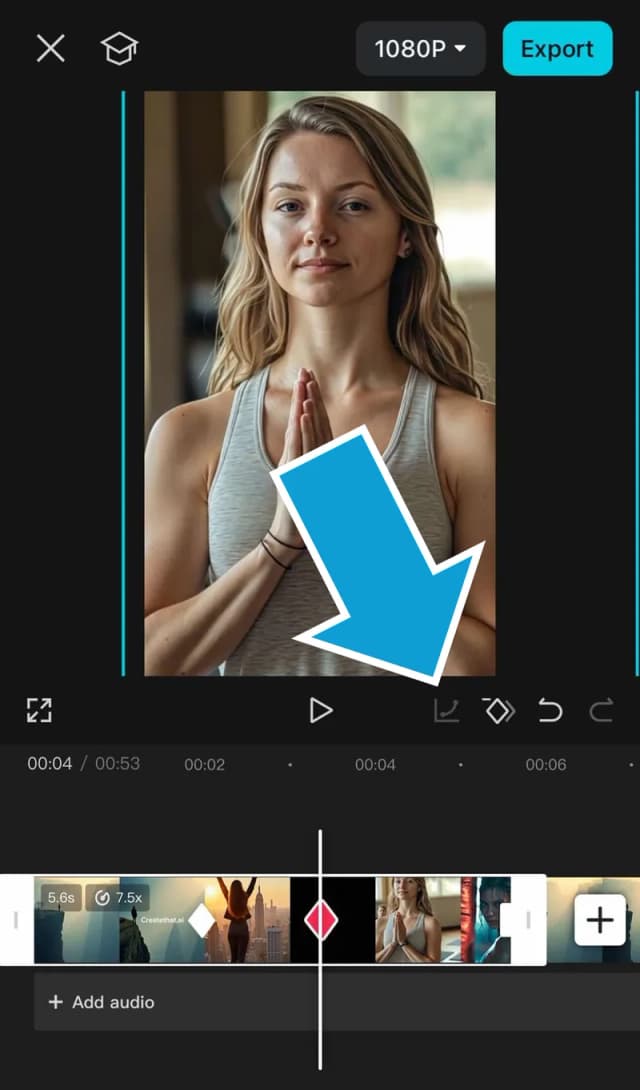
- Choose your speed curve
- Preview and fine-tune as needed!
Can't Find the Keyframe Button?
This is the most common keyframe problem in CapCut, and it's nearly always one of these:
- No clip is selected. The diamonds only show up once you click a clip, photo, text or audio track on the timeline
- You're looking in the wrong place (PC and Mac). The diamonds are in the right-hand panel next to each setting, not in the toolbar under the player or above the timeline. For a video clip, open Video, then Basic
- You're looking in the wrong place (mobile). The diamond with a plus sign sits just above the timeline on the right, next to undo and redo
- The setting can't be keyframed. Preset animations from the Animation tab have no diamond. Use Scale, Position or Rotation in Basic instead
- CapCut is out of date. Update the app. Older versions put some settings in different tabs
Frequently asked questions
What is the keyframe shortcut in CapCut PC?
CapCut's own guide lists Alt + K to show the keyframe panel and Shift + click to add a keyframe inside it. Most people never need it: select your clip and click the diamond next to the setting you want to animate in the right-hand panel.
Why can't I find the keyframe button in CapCut?
Select the clip on the timeline first, because the keyframe diamonds only show up for a selected clip. On PC and Mac they sit next to each setting in the right-hand panel (Video, then Basic), not in the toolbar under the player. On mobile, the diamond with a plus sign sits above the timeline, next to undo and redo.
How do I delete a keyframe in CapCut?
Move the playhead onto the keyframe so its diamond is filled in, then click (or tap) the diamond again. That removes the keyframe and CapCut redraws the animation between the keyframes that are left.
Can you use keyframes in CapCut for free?
Yes. Keyframes are part of the free version of CapCut on PC, Mac, mobile and the web editor. Some effects and filters you might animate are Pro, but adding keyframes isn't.
How do I add keyframes in CapCut on a Mac?
The same way as on Windows. CapCut for Mac has the same layout as CapCut for PC, so select your clip, move the playhead and click the diamond next to the setting in the right-hand panel.
Can you keyframe text and audio in CapCut?
Yes. Select the text on the timeline and you get diamonds next to its size, position and rotation, so you can slide or grow text in. Select an audio clip and the Volume setting has a diamond too, which is how you fade music down under a voiceover.
How do I make keyframes smooth in CapCut?
Keyframes move at a steady, linear speed by default, which can look stiff. Add a speed curve: on PC right-click the clip, choose Show keyframe animation and click the graphs icon; on mobile put the playhead on a keyframe and tap the graph icon. Pick an ease curve and the motion speeds up and slows down naturally.
Wrapping Up
Today we took your video editing game to another level by learning how to add keyframes to your video clips in CapCut.
Setting keyframes in CapCut is fairly easy, mastering them takes a while! So don't be scared to play around, move things, and break things.
In no time you'll be keyframe editing like a pro, adding keyframes to your video clips will become second nature. Two good ones to practise: a smooth zoom in CapCut and slow motion with speed curves.
Happy editing. 😎