Clipchamp Buffering or Not Working? How to Fix It
When Clipchamp freezes, buffers or won't open, it's almost always one of a handful of things: your computer's short on memory or disk space, an extension is getting in the way, or the app or browser needs a fresh start. Below are the fixes, in the order I'd try them. New to the editor? My beginner's tutorial for Clipchamp covers the basics.
Quick answer
These five fixes solve most cases, in this order:
- Reload with Ctrl + F5 (it works in the Windows app too), with your internet connected
- Close other tabs and apps, and check your drive has more free space than your video files
- Update the Clipchamp app in the Microsoft Store, or update Edge or Chrome
- Turn off extensions (ad blockers, privacy and translation add-ons) or try an InPrivate window for a test
- Clear the browser cache (or in the Windows app, Terminate then Repair it), then reopen the project
Is Clipchamp Down?
Work out whether it's you or them first. Open app.clipchamp.com in a different browser, or on another computer. If it works there, the problem's on your machine and the fixes below will sort it. If it fails everywhere, check Microsoft's own service status page (search for "Microsoft 365 service status") and give it a while.
Buffering or a Laggy Preview
Lag in the editor isn't usually your internet. It's your computer struggling with the files. Microsoft recommends at least 8 GB of RAM (16 GB is better), a 64-bit computer running 64-bit Edge or Chrome, a recent graphics card, and free disk space larger than your video files.
- Keep only one Clipchamp tab open, and keep it in the foreground.
- Close other apps and browser tabs.
- Free up disk space on your main drive.
- Use smaller or fewer clips. If you're working with 4K, compressing it to 1080p first helps a lot.
- If one clip causes the trouble, convert it to MP4 outside Clipchamp (even if it's already an MP4, since that can change the codecs) and swap it in.
- Split a long project into several shorter ones.
In the browser version, you can also try turning graphics acceleration off (or on, if it's off) in your browser's settings, then restart the browser. It helps on some graphics cards and hurts on others, so test it rather than assume.
Stuck Loading or a Blank Screen
If you're stuck on "Loading your assets" or a blank screen, Microsoft's fixes go like this. Try each one before moving to the next.
- Reload. Press Ctrl + F5, with your Wi-Fi on. This works in the Windows app too.
- Reopen the project. Go back to the page that lists your projects, reload it, then open the project again.
- Free up memory and disk space. Close other tabs and apps.
- Turn off extensions. Translation add-ons, privacy extensions and ad blockers are known causes. Turn off one suspect at a time, reload, and check. A quick test is an InPrivate (Edge) or Incognito (Chrome) window, but don't export from one.
- Clear the cache. Make sure you still have your original media first. Sign out of Clipchamp, clear the browser cache with the time range on All time and only Cached images and files ticked, then type
edge://restart(Edge) orchrome://restart(Chrome) into the address bar and press Enter. - Clear site data. Click the three dots next to the address bar, then More tools, Developer tools, the Application tab, Storage, then Clear site data. Reload and reopen the project.
Still stuck? Try the project on a different computer, or split it into shorter projects to see what's breaking it.
The Windows App Won't Open
These steps work on the Windows app. Go from the gentlest to the harshest:
- Update it. Open the Microsoft Store, click Check for updates, and install any Clipchamp update. Wait for any saving or exporting to finish first.
- Terminate it. Open Windows Settings > Apps > Installed apps, click the three dots next to Microsoft Clipchamp, choose Advanced options, then click Terminate. Open Clipchamp again.
- Repair it. On the same Advanced options page, click Repair. It's designed to fix the app without removing its data.
- Reset it (last resort). Click Reset on that page. This wipes the app's local data and settings, so you'll need to sign in again, and anything stored only on that computer is gone. Your personal projects live in OneDrive, so check they're all there, and keep your original media files somewhere safe.
- Use the browser version. Open app.clipchamp.com in Edge or Chrome. It has the same features as the app, so you can keep working while you sort the app out.
Crashing or Freezing
- Save-wise, Clipchamp autosaves every few seconds while you're online, so a crash rarely costs much. My guide on saving in Clipchamp explains where projects live.
- Work through the lag fixes above first. Crashing and freezing usually come from the same memory and disk problems.
- Update the app, your browser, Windows and your graphics driver.
- If it crashes at the same spot every time, copy the project, then remove or replace the clip near that point. Convert it to MP4 first if you can.
- In the Windows app, try the browser version, or the other way round.
Export Stuck or Failing
Stuck at 0% or frozen
- Keep Clipchamp in the foreground and don't switch tabs or windows while it exports.
- Give long, 4K or clip-heavy projects a few minutes.
- Close other apps and tabs, then export again.
- In the browser, don't export from an InPrivate or Incognito window, and turn off extensions.
- In the Windows app, restart Clipchamp. If it still fails, try Edge or Chrome.
Fails near the end
- Check you have free disk space, then try again.
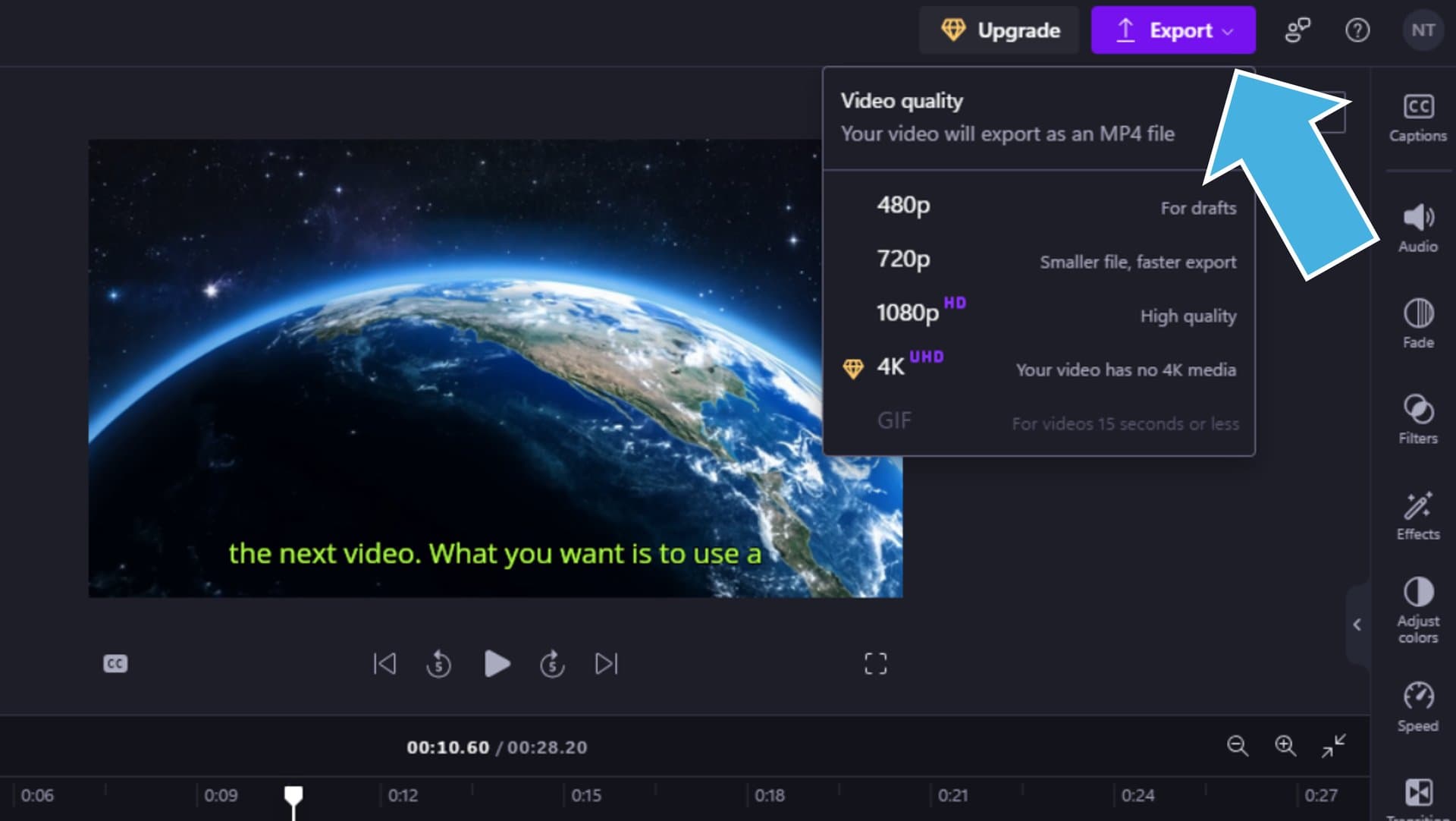
- Export at a lower resolution, like 720p or 1080p instead of 4K.
- Check for premium items, marked with a diamond. On the free plan they block the export until you remove them or upgrade. Free exports go up to 1080p.
- Convert big source videos to MP4 and swap them in.
- Find the failing section by copying the project and exporting it in parts.
Still slow or failing
- On a personal account, go to Settings > Export and turn off hardware acceleration. Some graphics cards interfere with exports.
- Update your graphics driver, Windows and your browser.
- In the browser, an antivirus can occasionally block parts of Clipchamp. Pausing a third-party antivirus for a test is worth a try (keep Windows' built-in protection on).
- Can't find the finished file? Check your Downloads folder first.
"Needs an Internet Connection" and OneDrive Problems
Clipchamp needs an internet connection to work and to save your progress, so editing offline isn't an option. If it says you're offline when you aren't:
- Reload the page with your Wi-Fi on (Ctrl + F5).
- If it still complains, clear the site data using the steps in the loading section above, then reopen the project.
- Try the browser version at app.clipchamp.com, or a different browser.
Personal projects are stored in OneDrive, so OneDrive trouble shows up as Clipchamp trouble. Two cases Microsoft covers:
- "You don't have access to your project." The OneDrive entitlement on your Microsoft account can switch off after a long time of inactivity. Sign in to OneDrive to reactivate it, then reload Clipchamp.
- "We couldn't save your projects to OneDrive." Open Settings (the gear icon at the top right of the Clipchamp dashboard), go to the OneDrive section, and choose Retry setup or Choose folder.
If projects won't save, also check your OneDrive isn't full. Once you're over your OneDrive storage, Microsoft stops new files and changes from uploading, and that includes your Clipchamp projects. Free up space there (or move the project's media out of OneDrive) and reload Clipchamp.
A Project Won't Open or Restore
- Work through the loading steps above, starting with Ctrl + F5 and then clearing the cache.
- If you only see "no access", it's the OneDrive problem above.
- Try the project on another computer, or in the other version (Windows app or browser).
- Split a very long project into shorter ones.
- Projects are files in OneDrive, so its Version history may hold an older copy you can go back to.
Missing Media ("Locate Asset")
Clipchamp doesn't sync your media files by default, so the project only remembers where each file is. If you move, rename or delete a file, Clipchamp asks you to find it again. Click Locate asset and point it at the file. To avoid this, keep your originals where they are, and never rename or move them mid-project. If a clip is gone for good, replace it on the timeline with a copy.
No Sound
- Click the clip, open the Audio tab in the property panel and check the volume isn't at 0 or muted.
- Check the audio track isn't sitting at the end of the timeline, past your video.
- If the sound drops out only in the export, export again at a different resolution, and check your system volume and output device.
- If the audio only goes missing from one clip, convert that file to MP4 and swap it in.
Frequently asked questions
Why is Clipchamp so laggy?
Usually it's a shortage of memory, disk space or processing power. Microsoft recommends at least 8 GB of RAM (16 GB is better), a 64-bit computer with 64-bit Edge or Chrome, a recent graphics card and free disk space larger than your video files. Close other tabs and apps, keep one Clipchamp tab open, and use smaller or shorter clips.
Why is my video buffering even though my internet is fine?
Buffering in the editor is mostly about your computer, not your connection. Large 4K clips, long projects and a full drive all slow the preview. Close other apps and tabs, free up disk space, convert heavy clips to MP4 or compress 4K to 1080p first, and split a long project into shorter ones.
How do I clear the cache in Clipchamp?
In Edge or Chrome, clear the browser cache with the time range set to All time and only Cached images and files ticked, then restart the browser. If a project still won't load, open Developer tools > Application > Storage > Clear site data on the Clipchamp page. Make sure you still have your original media files first, because you may need to relink them.
Is Clipchamp having problems right now?
Check whether it's just you first. Try app.clipchamp.com in a different browser, or on another device, and check Microsoft's service status page. If it opens fine somewhere else, the problem is on your computer, so work through the fixes above.
Does Clipchamp need an internet connection?
Yes. Clipchamp needs an internet connection to work and to save your progress, and personal projects are stored in OneDrive. If it says you're offline when you aren't, reload the page with your Wi-Fi on, then try clearing the site data.
What do I do if Clipchamp export is stuck?
Keep Clipchamp in the foreground and give long or 4K projects a few minutes. Then close other apps and tabs, export at a lower resolution, and remove any premium items (marked with a diamond), which block the export on the free plan. On a personal account, you can also try turning off hardware acceleration in Settings > Export.
If it's all working again but you want a second opinion on editors, here's my Clipchamp vs CapCut comparison.