How to Add B-Roll: CapCut, Premiere, DaVinci, iMovie
Adding b-roll works the same way in every editor: the b-roll goes on a layer above your main clip, so it covers the picture while the voice keeps playing. Here are the exact steps for CapCut, Premiere Pro, DaVinci Resolve, iMovie and Final Cut Pro.
Quick answer
Put your main clip (the A-roll) on the main track, then put the b-roll on the track above it, over the words it should show. Turn the b-roll's own sound off so the main clip's voice keeps playing. In CapCut on your phone that's Overlay › Add overlay, and in iMovie on iPhone it's Cutaway.
What You're Building
Here's a vertical clip with two pieces of b-roll added. The speaker on stage is the main clip. The b-roll covers him for a few seconds at a time, and his voice never drops out.
Two years ago I got a message at 2 a.m.


The speaker's voice comes from the main clip, so it keeps playing while the b-roll covers the picture.
Need clips to practice with? Every clip in my free b-roll library comes in 16:9 or 9:16, so it fills the frame without black bars.
How to Add B-Roll in CapCut (Phone)
- Open your project with your main clip on the timeline.
- Move the playhead to where the b-roll should start.
- Tap Overlay in the bottom menu, then Add overlay.
- Pick your clip from Recent (your camera roll), then tap Add.
- If it doesn't fill the screen, pinch it bigger in the preview.
- Drag the ends of the overlay on the timeline to set how long it shows.
- With the overlay selected, tap Volume and drag it to 0.
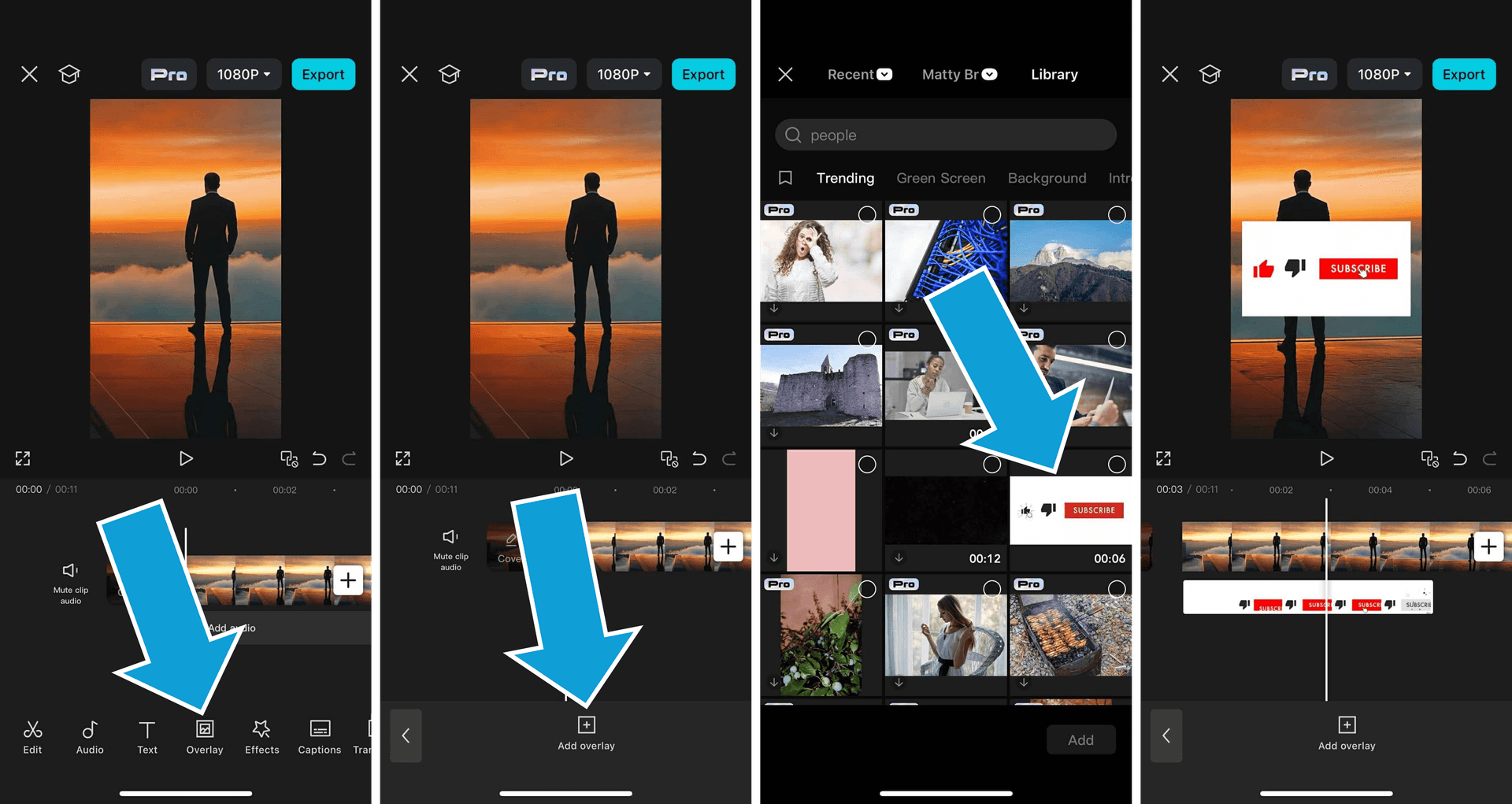
Overlays do more than b-roll, too. There's more in how to add overlays in CapCut.
How to Add B-Roll in CapCut (Desktop)
- Click Import and bring in your b-roll clips.
- Drag your main clip onto the timeline.
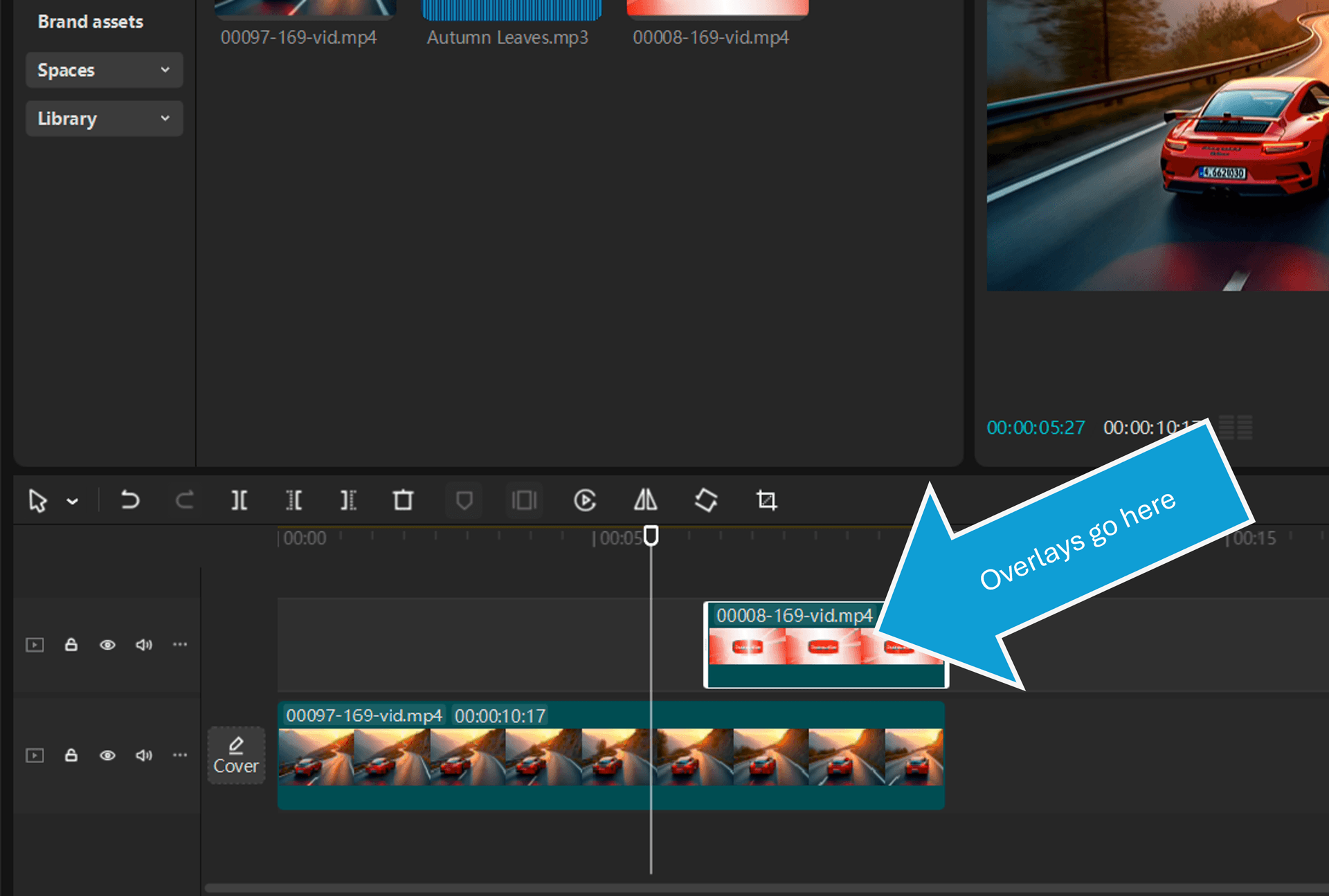
- Drag a b-roll clip onto the empty space above the main clip. CapCut makes a new track for it.
- Line it up with the words it should show, and drag its edges to trim it.
- Click the speaker icon at the left end of the b-roll's track to mute it, or select the clip and turn its volume down in the Audio tab.
How to Add B-Roll in Premiere Pro
- Import your b-roll into the Project panel.
- Put your main clip on V1, with its audio on A1.
- Drag the b-roll onto V2, directly above the part it should cover.
- Its sound lands on A2. Click M on the A2 track header to mute it, or Alt-click (Option-click on a Mac) the b-roll's audio and delete it.
- Trim the b-roll by dragging its edges, so it covers just the words it shows.
To skip the audio altogether, open the clip in the Source Monitor and drag it in with the Drag Video Only button under the picture.
How to Add B-Roll in DaVinci Resolve
- On the Edit page, put your main clip on Video 1.
- Drag the b-roll from the Media Pool into the empty space above it. Resolve adds Video 2.
- Or put the playhead where it should start, select the clip in the Media Pool and press F12 (Place on Top).
- Mute its sound with the M button on its audio track, or Alt-click (Option-click) the audio part and delete it.
- Trim it to the words it should cover.
How to Add B-Roll in iMovie (iPhone and Mac)
iMovie calls b-roll over your main clip a cutaway.
On iPhone or iPad:
- Scroll the timeline so the playhead sits where the b-roll should start.
- Tap Add Media (+) and find your clip.
- Tap the clip, tap the More button (…), then tap Cutaway.
- The main clip's audio keeps playing. To silence the cutaway's own sound, tap it and turn its volume down.
On a Mac:
- Drag the b-roll from the browser to just above a clip in the timeline.
- Let go when the green add icon appears. iMovie adds it as a cutaway.
- To change the effect, click Video Overlay Settings above the viewer and check it's set to Cutaway.
- Select the cutaway and use the Volume control above the viewer to mute it.
How to Add B-Roll in Final Cut Pro
- Put the playhead in the timeline where the b-roll should start.
- Select the clip in the browser and press Q (Connect to Primary Storyline). It attaches above your main clip.
- Drag its edges to trim it.
- To mute it, select it and drag Volume all the way down in the Audio inspector, or use Clip › Detach Audio and delete the audio.
Connected clips move with the main clip they're attached to, so your b-roll stays lined up with the words even when you trim earlier parts of the video.
Other Phone Editors
Every phone editor has the same feature under a different name. CapCut calls it Overlay, iMovie calls it Cutaway, and apps like InShot call it PIP (picture in picture). Add the clip, stretch it to fill the frame, and turn its volume down.
How to Add B-Roll Automatically
AI editors can read your transcript and drop matching clips onto your timeline for you. They're quick, but they tend to pick the obvious stock shot, so check each one. Here's a comparison of the best AI b-roll generators.
Tips for Better B-Roll Edits
- Keep clips short. 2 to 5 seconds each, about one sentence.
- Cut on the word. Start the b-roll as the speaker says the thing it shows.
- Match the shape. 16:9 b-roll for YouTube, 9:16 for Shorts, Reels and TikTok.
- Match the look. A LUT over everything makes clips from different places look like one video. Try these free CapCut LUTs.
- Use natural sound sparingly. A little wind or traffic under the voice can make b-roll feel real.
- Hide your cuts. Put b-roll over every jump cut. More on that in what is a cutaway shot.
Free b-roll library
Hundreds of free clips in 16:9 and 9:16, ready to drop into your edits.
Frequently asked questions
How do I add b-roll on my iPhone?
In CapCut, open your project, tap Overlay, then Add overlay, and pick the clip. In iMovie, tap Add Media, choose the clip, tap the More button (…) and pick Cutaway.
How do I keep the main audio playing over b-roll?
Put the b-roll on the track above the main clip instead of cutting it into the main clip, then mute the b-roll's own sound. The main clip's audio keeps playing underneath.
Why does my b-roll have black bars?
It's a different shape from your video, like a 16:9 clip in a 9:16 Reel. Scale it up until it fills the frame, or use a 9:16 version of the clip.
Do I need to mute b-roll?
Almost always, because its sound fights the voice. If it has nice natural sound, like waves or a busy street, keep it very quiet under the voice instead of turning it off.
How long should b-roll be on screen?
Usually 2 to 5 seconds per clip, about one sentence of what is being said.
Can b-roll be added automatically?
Yes. AI editors like Descript, Kapwing, Submagic and OpusClip can read your transcript and drop matching stock clips on your timeline. Check each one, because they often pick the obvious shot.